

Many ABAP developers can fetch data into an internal table but struggle when the requirement says, “Print invoice, format purchase order, add company logo, show item table, create spool, or call the form from a driver program.” That is where SmartForms SAP ABAP becomes a practical output skill. In ECC 6.0 and SAP S/4HANA 2026, Smart Forms still support business documents such as invoices, purchase orders, delivery notes, statements, labels, and salary slips.
Before starting this SmartForms in SAP ABAP tutorial, you need access to the main form and ABAP development transactions. SMARTFORMS is the transaction code used to create and maintain Smart Form layouts. SE38 is the ABAP Editor used to create and run executable driver programs. SE11 is the ABAP Dictionary transaction used to create structures, table types, and data elements.
You also need a basic idea of the business document. For example, an invoice form normally needs header data, customer data, item data, tax values, payment terms, company logo, and footer text. A purchase order form normally needs vendor data, PO header, PO items, delivery address, and terms.
For this SmartForms SAP ABAP example, we will create a simple customer document with header details and item lines. The same pattern works for invoices, purchase orders, delivery notes, and statements.
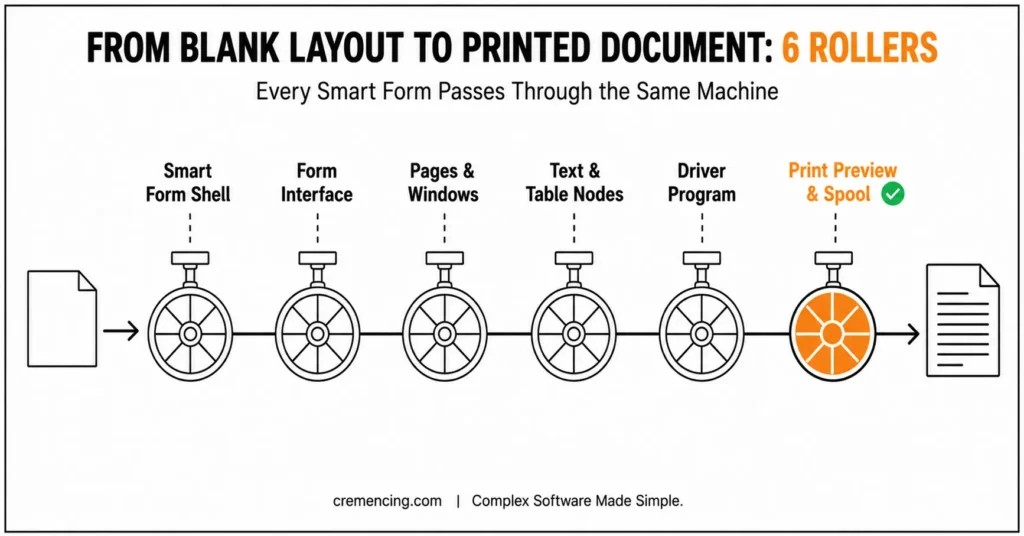
Use this working flow:
| Step | What You Build | Why It Matters |
| 1 | Smart Form shell | Creates the layout object |
| 2 | Form interface | Defines input from the driver program |
| 3 | Pages and windows | Controls page structure |
| 4 | Text and table nodes | Displays business content |
| 5 | Driver program | Fetches data and calls the form |
| 6 | Print preview and spool | Confirms output works |
Step 1—Create the Smart Form in SMARTFORMS
Open transaction SMART forms. This is the SmartForms in SAP ABAP T-code used to design the form layout, create pages, windows, text nodes, tables, templates, and form interface definitions. Enter a custom form name such as ZSF_CUSTOMER_STATEMENT and choose Create.
Use a meaningful form name. Avoid names like ZTEST_FORM1 for real work because forms are often connected to output control, print programs, transports, and support tickets. A clear name helps support teams understand the document purpose.
Maintain the form description, for example: “Customer Statement Smart Form.” Then open Global Settings. This area contains Form Attributes, Form Interface, and Global Definitions.
Do not start with layout design immediately. First decide what data the form receives. A Smart Form should not contain heavy database selection logic. Keep database selection in the ABAP driver program and pass prepared data to the form.
A clean Smart Forms flow looks like this:
” Driver program selects business data
” Driver program prepares header and item internal table
” Driver program gets generated Smart Form function module
” Driver program calls generated function module
” Smart Form displays header, item table, text, logo, and footer
This matters because Smart Forms are document-output tools. They should format data, not become a hidden database-processing layer. Smart Forms rely on ABAP programs for data preparation, and in distributed SAP landscapes, this data is often transferred through RFC in SAP ABAP before document generation begins.
Step 2 — Define the Form Interface and Global Data
Open the Form Interface under Global Settings. The form interface defines the data received from the driver program. This is where smartforms in ABAP start becoming a real business document, because the layout can only print what the driver passes.
Create an import parameter for header data, such as IS_HEADER. Create a table parameter for item data, such as IT_ITEMS. In real systems, use DDIC structures and table types where possible because they are stable and reusable.
Example DDIC-style design:
| Name | Type | Purpose |
| IS_HEADER | ZSTR_SF_HEADER | Company, customer, document date |
| IT_ITEMS | ZTT_SF_ITEM | Item table for document lines |
Under Global Definitions, define helper variables only when the form really needs them. For example, you may define totals, page text, or formatting variables. Do not place complex business logic inside the form unless the requirement is truly output-specific.
A common beginner mistake is to perform multiple SELECT statements inside Smart Form program lines. Avoid that. The form becomes harder to debug, reuse, and test. Keep SELECT logic in the driver program.
For a simple layout, your form interface can follow this structure:
” IS_HEADER TYPE ZSTR_SF_HEADER
” IT_ITEMS TYPE ZTT_SF_ITEM
” IV_TITLE TYPE CHAR50
This is not executable ABAP code by itself. It shows what you define in the Smart Form interface. The ABAP driver program will pass these values during the generated function module call.
Step 3 — Design Pages, Windows, and Main Window
A Smart Form page controls the document structure. A window controls where content appears on the page. The Main Window is special because it can flow across pages. Use it for item tables that may continue to the next page.
Create or use the default first page, usually named FIRST. Add windows such as:
| Window | Purpose |
| HEADER | Company logo, document title, customer details |
| MAIN | Item table and repeating line data |
| FOOTER | Terms, signature, page number |
| ADDRESS | Customer or vendor address block |
Use fixed windows for content that should stay in a set position. Use the Main Window for line items because it supports overflow to the next page. If you put item lines in a normal fixed window, long documents may cut off or display incorrectly.
Set page format according to the requirement. Common examples include A4 portrait for invoices and statements, landscape for wide tables, and label-sized pages for barcode labels.
Smart Forms do not become professional only because of ABAP code. The layout matters. Align columns, control spacing, use readable font sizes, and test with short and long data. A form that works with one item may fail visually with fifty items. If you’re new to ABAP, start here.
Step 4 — Add Text, Logo, and Table Output
Create text nodes in the header window for title and company details. Add a graphic node for the company logo if required. Logos are normally uploaded and maintained through SAP graphics tools, depending on system setup and Basis standards.
In the Main Window, create a Table node. Define table line type and columns such as Item, Material, Description, Quantity, Unit, and Amount. Bind the table to IT_ITEMS from the form interface.
Use text nodes inside table cells to display fields. For example, print material number, description, quantity, and amount from the current item work area. A typical table design for a smart form in SAP ABAP example can look like this:
| Column | Printed Field |
| Item | &WA_ITEM-POSNR& |
| Material | &WA_ITEM-MATNR& |
| Description | &WA_ITEM-MAKTX& |
| Quantity | &WA_ITEM-MENGE& |
| Amount | &WA_ITEM-NETWR& |
Add footer text such as terms and conditions, contact details, or signature line. Keep legal or finance wording controlled by the business owner. Developers should not invent business terms.
For totals, calculate values in the driver program when possible and pass them through the interface. You can calculate simple output totals in the form, but driver-side totals are easier to unit-check and debug.
Step 5 — Write the ABAP Driver Program
The driver program is the ABAP report that selects data, prepares the form parameters, gets the generated Smart Form function module name, and calls it. This is where many beginner tutorials are weak.
Why You Shouldn’t Hardcode the Function Module Name
Do not hardcode the generated Smart Form function module name. SAP generates a function module when the form is activated, and the generated name can differ across systems after transport. Use SSF_FUNCTION_MODULE_NAME to get the correct generated FM dynamically.
Sample ABAP Code Pattern
Below is a simple SAP Smart Forms ABAP code pattern.
REPORT zdriver_customer_statement.

TYPES: BEGIN OF ty_header,
         company_name TYPE char50,
         customer_no  TYPE kunnr,
         customer_name TYPE char50,
         doc_date     TYPE sy-datum,
       END OF ty_header.

TYPES: BEGIN OF ty_item,
         posnr TYPE char6,
         matnr TYPE matnr,
         maktx TYPE maktx,
         menge TYPE menge_d,
         netwr TYPE netwr,
       END OF ty_item.

DATA: ls_header TYPE ty_header,
      lt_items  TYPE STANDARD TABLE OF ty_item,
      lv_fmname TYPE rs38l_fnam.

PARAMETERS p_kunnr TYPE kunnr OBLIGATORY. " Customer entered by user

START-OF-SELECTION.
  ls_header-company_name  = 'Demo Company'. " Demo company name for form header
  ls_header-customer_no   = p_kunnr. " Pass selected customer to form header
  ls_header-customer_name = 'Sample Customer'. " Replace with real customer lookup
  ls_header-doc_date      = sy-datum. " Current document date

  APPEND VALUE ty_item(
    posnr = '000010'
    matnr = 'MAT-100'
    maktx = 'Demo Material'
    menge = '10'
    netwr = '1500' ) TO lt_items. " Demo item line for Smart Form table

  APPEND VALUE ty_item(
    posnr = '000020'
    matnr = 'MAT-200'
    maktx = 'Service Item'
    menge = '5'
    netwr = '750' ) TO lt_items. " Second demo item line

  CALL FUNCTION 'SSF_FUNCTION_MODULE_NAME'
    EXPORTING
      formname           = 'ZSF_CUSTOMER_STATEMENT'
    IMPORTING
      fm_name            = lv_fmname
    EXCEPTIONS
      no_form            = 1
      no_function_module = 2
      OTHERS             = 3.
  IF sy-subrc <> 0.
    MESSAGE 'Smart Form function module not found' TYPE 'E'. " Stop if form is inactive or missing
  ENDIF.

  CALL FUNCTION lv_fmname
    EXPORTING
      is_header = ls_header
      iv_title  = 'Customer Statement'
    TABLES
      it_items  = lt_items
    EXCEPTIONS
      formatting_error = 1
      internal_error   = 2
      send_error       = 3
      user_canceled    = 4
      OTHERS           = 5.
  IF sy-subrc <> 0.
    MESSAGE 'Smart Form output failed' TYPE 'E'. " Handle output generation errors
  ENDIF.
Production Habits to Follow
This SAP Smart Forms step-by-step ABAP code shows the most important production habit: call the generated function module dynamically. In a real system, replace demo values with SELECT logic and DDIC structures.
If the form interface names do not match the driver program parameters, the generated FM call will fail. Always activate the Smart Form after interface changes and adjust the driver program accordingly.
Step 6 — Test Print Preview and Spool Output
After activating the Smart Form and driver program, run the driver report in SE38 or ADT. SE38 lets you execute the ABAP report from SAP GUI. Enter the test customer number and run the report.
Use print preview first. Confirm the title, customer data, item table, logo, footer, alignment, and page breaks. Then test with different data volumes: no items, one item, many items, long descriptions, large amounts, and multiple pages.
Check spool output if the form creates print output. SP01 is the spool request transaction. It shows generated print requests, status, output device, and spool content. Use SP01 to confirm that the form created a spool request and that the output looks correct. Smartforms is a classic ABAP tool at its core; see how it compares in the ABAP Cloud vs Classic ABAP debate if you’re planning a long-term tech strategy.
Smart Forms vs. Output Forms
| Requirement | Smart Forms | Output Forms / Adobe-based approach |
|---|---|---|
| Existing ECC Smart Form | Strong fit | Usually unnecessary to replace solely because of age |
| Existing S/4HANA migrated form | Can remain appropriate when supported | Evaluate during modernization |
| New S/4HANA form | Check application/output-control support first | Preferred in the documented S/4HANA output-control scenario |
| Complex PDF-oriented document | Possible through output conversion | Strong fit |
| Classic SAP GUI output | Strong fit | Also possible depending on framework |
| Long-running legacy form | Maintain existing implementation where justified | Consider during modernization |
| New development requiring current S/4HANA output architecture | Verify before choosing | Evaluate first |
Testing & Validation
Start validation from the driver program. Put a breakpoint before the generated Smart Form FM call and check whether header and item data are filled correctly. If the data is wrong before the call, the Smart Form is not the problem.
Next, validate the Smart Form interface. Confirm that IS_HEADER, IT_ITEMS, and other parameters match the names and types used in the driver program. Activate the Smart Form after every interface change.
Then validate layout behavior. Test short and long item tables, long text, empty optional fields, and multiple pages. Confirm that the Main Window continues correctly and that the footer does not overlap the item table.
Finally, validate spool and printer behavior. Use SP01 to check spool requests. Test output device, page format, logo rendering, language, and alignment. If the form will be emailed or archived, test that route separately with the Basis or functional team.
For debugging, use the driver program first. If the data is correct but output is wrong, debug Smart Form program lines, conditions, and table node logic.
Common Issues During Setup
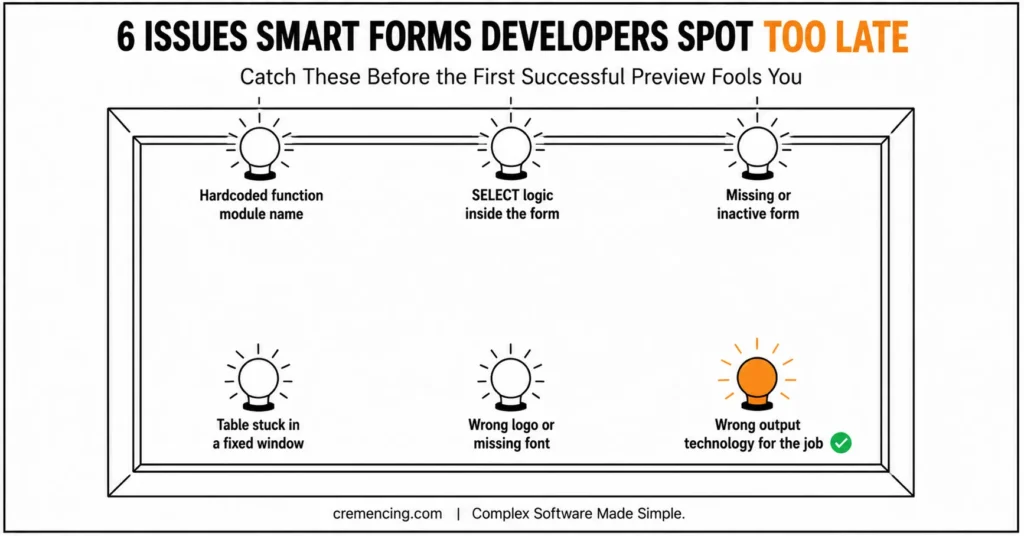
The first issue is hardcoding the generated function module name. This works in one system and fails after transport because the generated FM name can change. Always use SSF_FUNCTION_MODULE_NAME.
The second issue is putting SELECT logic inside the Smart Form. This hides business logic inside the layout and makes support difficult. Keep database selection in the driver program.
The third issue is a missing or inactive form. If SSF_FUNCTION_MODULE_NAME returns an error, check the form name, activation status, package, transport, and spelling.
The fourth issue is table output not continuing to the next page. Usually the item table is placed in a fixed window instead of the Main Window, or the table node/page settings are wrong.
The fifth issue is wrong logo or missing font. Check uploaded graphic name, style settings, output device, and printer support. A form can look correct in preview but print differently on a real device.
The sixth issue is using Smart Forms when another output technology fits better. Smart Forms are fine for many ECC and SAP GUI document outputs, but Adobe Forms or newer output management may fit some S/4HANA requirements better. Smartforms often comes up alongside reporting tools in interviews; see “SAP ABAP ALV reports interview questions for related prep.”
Conclusion
Smartforms SAP ABAP turns raw business data into professional documents only when the full flow is clear. A Smart Form is not just a layout screen where you place text, tables, and logos. It is part of a complete output process where the driver program prepares the data, the form interface receives it, and the Smart Form layout converts it into a readable business document.
Build the driver program carefully, pass clean data through the form interface, design pages and windows with purpose, and call the generated function module dynamically. Never hardcode the generated function module name, because it can change after transport or activation. Use SSF_FUNCTION_MODULE_NAME so the driver program always calls the correct active version of the form.
Good Smart Forms design also depends on clean separation of responsibility. The ABAP driver program should handle database selection, validation, totals, and business preparation. The Smart Form should focus on presentation: header, item table, footer, logo, page breaks, terms, and formatting.
A form that looks correct for one invoice may fail when the customer name is long, the item table continues to another page, or the output device handles fonts differently. Explore Building UIs with Web Dynpro
Frequently Asked Questions
1. What are Smartforms in SAP ABAP used for?
Smartforms in SAP ABAP are used to create formatted business documents such as invoices, purchase orders, delivery notes, statements, salary slips, and labels. They convert prepared business data into printable or previewable output using layout elements, windows, text, tables, and graphics.
2. What is the t-code for SmartForms in SAP ABAP?
The SmartForms in SAP ABAP t-code is SMARTFORMS. It is used to create and maintain Smart Form layouts, interfaces, global definitions, pages, windows, text nodes, table nodes, templates, and output formatting logic.
3. What is the driver program in Smart Forms?
The driver program is the ABAP report that selects data, prepares structures and internal tables, finds the generated Smart Form function module, and calls it. Most SAP SmartForms ABAP code examples should include this driver-program flow.
4. Why should we not hardcode the generated Smart Form function module?
Do not hardcode the generated Smart Form function module because SAP can generate different names across systems. Use SSF_FUNCTION_MODULE_NAME to read the active generated FM name dynamically before calling the form. [INTERNAL LINK: Smart Forms driver program → SSF_FUNCTION_MODULE_NAME in SAP ABAP]
5. What is the difference between Smart Forms and SAPscript?
Smart Forms are easier to design and maintain than SAPscript for many standard business documents. SAPscript is older and still exists in legacy systems. Smartforms in ABAP offer a more structured layout tree, form interface, and generated function module approach.
6. Is Smart Forms still used in S/4HANA?
Yes, Smart Forms still exist in S/4HANA, especially for migrated or SAP GUI-based output. However, some S/4HANA projects may prefer Adobe Forms or newer output management depending on the business process, module, and architecture.
7. Can I download a Smart Forms tutorial as PDF?
Many users search for smartforms in sap abap step by step pdf because they want offline notes. The better approach is to build one example in your own system, then save your internal steps, screenshots, driver program, and output checks as a project-specific PDF.
8. What is a simple SmartForm in SAP ABAP example?
A simple smartforms in sap abap example is a customer statement. The driver program prepares header data and item lines, passes them to the Smart Form interface, and the layout prints title, customer details, item table, total, footer, and logo.