

Introduction
You change a custom field in a Fiori app, click Save, and nothing happens—or the field appears in the UI but the value never reaches the backend. That is a very different problem from a field that simply fails to appear.
For SAP developers and functional consultants working with the Custom Fields and Logic framework, the fastest way to troubleshoot this is to separate the problem into three layers: the extension definition, the Fiori/OData request, and the backend persistence or business logic.
This guide focuses on that distinction. Instead of treating every save or activation failure as a transport, authorization, or cache issue, it shows where to look first, which SAP transactions can provide evidence, and when a custom logic or backend enhancement needs deeper analysis.
What is the Custom Fields and Logic Fiori App?
The Custom Fields and Logic Fiori app is also one of the important building blocks of SAP’s key user extensibility framework. It allows functional consultants and developers to extend standard SAP apps with no need for core code modification.
Several data ensures future security upgrade: This will ensure all your customization is secure for the upgrade & compatible with the newer version of SAP.
With this app, you can:
- Custom Fields for Business Objects
- Either you can add business logic with predefined BAdIs
- Extend standard Fiori user interfaces
- Improve reports, forms, and OData services
- Enable fields across multiple applications
One of the key features of this tool is aimed at influencing SAP S/4HANA application processes in scenarios where flexibility and extensibility are important to adapting your processes to what your business needs.
Custom Fields and Logic Fiori App Save/Activate Issue
Normally, the reason for save or activate failure in the Custom Fields and Logic Fiori app is not a system bug. Instead, it is caused by configuration gaps, missing dependencies, or system inconsistencies.
The most common reasons include:
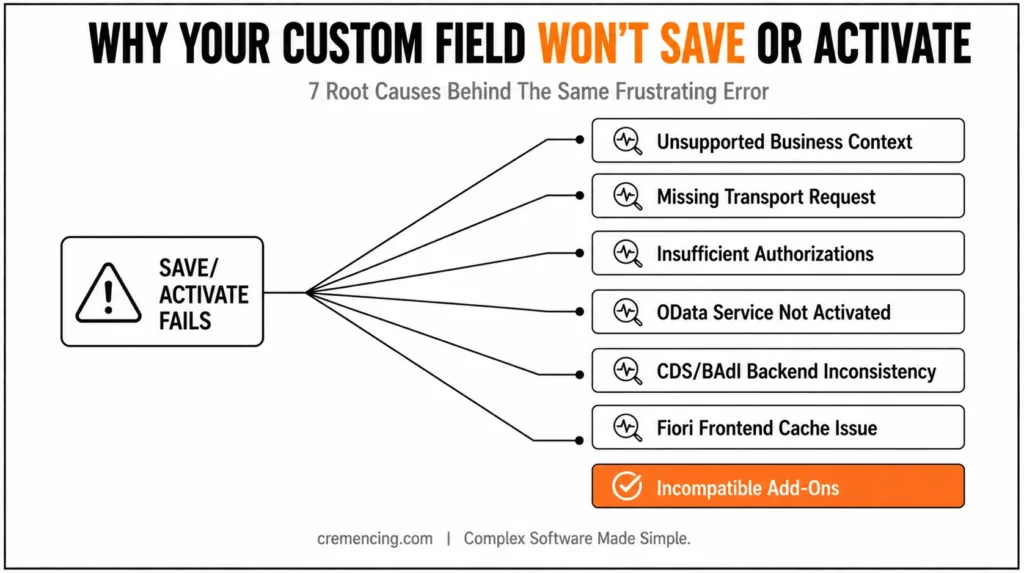
- Incorrect or unsupported business context
- Missing transport request assignment
- Insufficient user authorizations
- OData service not activated/registered
- Only on CDS views or BAdI implementations with backend inconsistencies
- Cache problems in Fiori front-end
- Incompatible with other add-ons or extensions
All of these issues can also happen either individually or concurrently, making troubleshooting more difficult. In order to quickly pinpoint the root cause, a structured approach is needed.
How to Resolve Save or Activation Problems (In-Depth Guide)
Use this troubleshooting process to identify the best solution:
Step 1 – Verify Business Context
The business context in which you intend the custom field or logic to be applied.
- Select the correct business context
- Check if the field is supported in that context
- Ensure compatibility with the destination application
- Recreate the field if necessary
So, one of the most common reasons for an activation to fail is that it doesn’t pick up the correct business context.
Step 2 – Check Transport Request
Each change in the SAP world needs to have a transport request assigned.
- Save the correction request not assigned to a correct transport.
- System has the allow changing option (not in display mode)
- Verify transport layer configuration
- Make sure there are no transport lock issues
You can also not save or activate without a transport request.
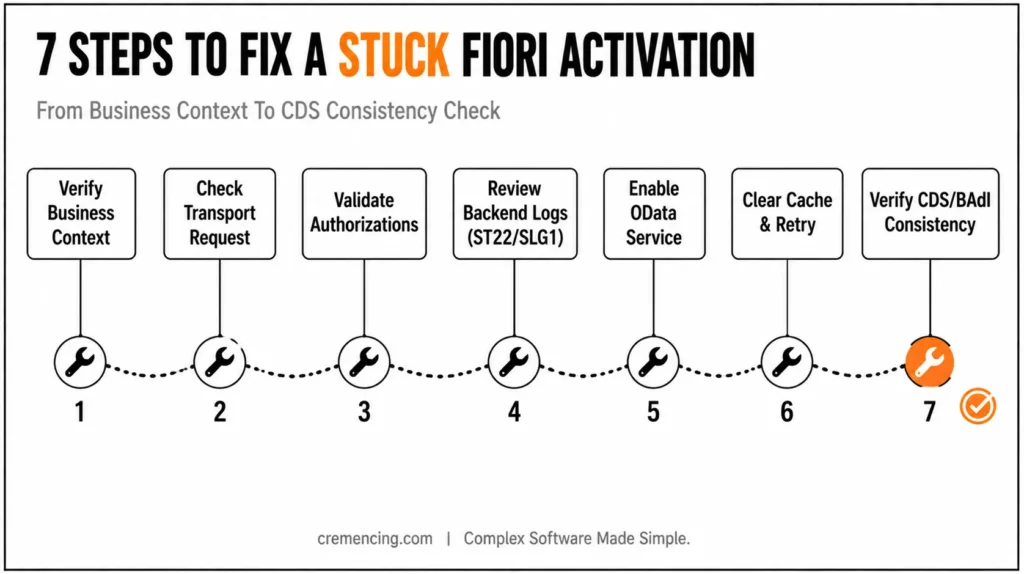
Step 3 – Validate Authorizations
This can resolve saving or activation issues due to authorization without throwing proper error messages.
Make sure your user has the roles, like:
- SAP_BR_DEVELOPER
- SAP_BR_EXTENSIBILITY_SPECIALIST
Also verify:
- S_DEVELOP authorization object
- Fiori catalogs and groups required access
Any extensibility operations will require proper authorization.
Step 4 – Review Backend Logs (ST22 / SLG1)
Backend logs contain detailed information on system errors.
- Check runtime dumps using ST22
- Read SLG1 to check application logs
Look for:
- Activation failures
- BAdI implementation errors
- CDS view inconsistencies
- Missing dependencies
This step typically identifies the exact root cause and greatly reduces troubleshooting times.
Step 5 – Enable OData Service
If your changes touch UI or APIs, then the associated OData service should be running.
- Navigate to /IWFND/MAINT_SERVICE
- Check that the service is running
- Re-register the service if necessary
- Check for service-related errors
Custom fields may be blocked from both the activation process and from being visible with inactive OData services.
Step 6 — Clear Cache and Try Again
There may be cache issues in the Fiori frontend that are causing updates not to show up properly.
Execute the following transactions:
- /UI2/INVALIDATE_CLIENT_CACHES
- /IWFND/CACHE_CLEANUP
Clear the cache and log out, and then log in or refresh your browser session.
Step 7 − Verify Consistency for CDS View and BAdI
In some more complex cases, the problem could come from backend objects.
- Maintain Consistency of CDS view extensions
- Validate field mappings
- Review BAdI implementation logic
- Avoid conflicts with existing enhancements
When we’re dealing with advanced custom logic, this step is crucial.
| Symptom | First place to investigate | Useful evidence | Do not assume |
|---|---|---|---|
| Field is not visible | Business context and field usage | Custom Fields and Logic configuration | That the field was created in the wrong database table |
| Field is visible but value does not persist | Fiori request → OData/service → backend | Browser/network response, service response, application logs | Clearing the cache will fix persistence |
| Save returns an error | Application/service response | HTTP/OData error, backend log, dump | That the transport is automatically the cause |
| Activation fails | Extension definition and backend validation | Activation message, application log, dump | That the UI itself is defective |
| Custom logic changes the value unexpectedly | Enhancement implementation | Debugger, filter conditions, field assignments | That SAP standard logic overwrote the value |
| Change works in one system but not another | Transport/configuration | Extension registration, package, target-system configuration | That the same release behavior exists everywhere |
Benefits & ROI of Resolving These Problems
Early resolution of Custom Fields and Logic Fiori app issues give tremendous business benefits:
- 30–50% reduction in development time
- Faster deployment and activation cycles
- Reduced production errors and rework
- Better user adoption of Fiori apps
- Reduced reliance on custom ABAP coding
For large-scale SAP implementations, these enhancements lead to considerable savings in time and cost. For a deeper look at the CDS-to-OData-to-Fiori relationship, see our guide on building SAP Fiori apps from CDS views
What Consultancies Should NOT Do
Avoid these common mistakes:
- Selecting the wrong business context
- Not assigning a transport request
- Hiding from backend logs and error messages
- Changes directly in production systems
- Skipping OData service activation
- Failure to clear caches after updates
Best Practices
- Test any changes in a QA system before deploying to production
- Follow a clear and consistent naming convention
- Document all custom fields and logic that may have been implemented
- Validate each step during development
- Maintain proper transport management
Adopting these practices can enhance system stability and minimize recurrent problems.
Advanced Debugging Techniques
Most other guides offer basic troubleshooting only. But complex problems need deeper technical analysis.
Advanced techniques include:
- Using the ABAP debugger to check BAdI logic
- Analysis of CDS view extensions for structural conflicts
- Testing of OData metadata and responses from services
- Identifying conflicts between multiple enhancements
- More Advanced Debugging with ABAP Development Tools (ADT)
- Checking system logs to get better on implicit enhancement issues
The use of these techniques resolves issues that cannot be solved through standard troubleshooting steps.
Failure to clear caches after updates
Best Practices
- Test any changes in a QA system before deploying to production
- Follow clear and consistent naming convention
- Document all custom fields and logic that may have been implemented
- Validate each step during development
- Maintain proper transport management
Adopting these practices can enhance system stability and minimize recurrent problems.
The use of these techniques resolves issues that cannot be solved through standard troubleshooting steps.
Need Expert Help?
Are you experiencing repeated challenges with SAP Fiori that are hindering your project progress?
Our SAP experts will immediately fix your Custom Fields and Logic problem. We are here to provide you with prompt, trusted, and expert assistance.
Conclusion
When a Fiori custom field does not save, the fastest fix is not to repeatedly republish the field or clear the browser cache. First determine where the failure occurs.
If the field is missing, investigate the business context and field usage. For fields that appear but do not retain their values, trace the save request and inspect the service response. Once the request reaches the backend, check application logs, runtime errors, authorizations, and custom enhancement logic that could change or reject the value.
The same situation can also happen in case of your Custom Fields and Logic Fiori app save/activation is unsuccessful, mainly due to this particular configuration, authorizations, or backend inconsistencies. The code may seem a BIT out of place, but in 90% of the cases, this is solvable with stepwise debugging.
Following the steps described in this guide, you can quickly find out the culprit of these issues, solve them on the spot, and even prevent it from happening again in your future projects. By providing newer features, it can greatly improve development productivity as well as ensure stronger SAP Fiori extensions.
FAQ Section
What could be the reason that a newly created field is not saving in Fiori?
Usually, this happens because of a wrong BD context or missing transport request, or insufficient user authorization.
Why is activation not successful in custom fields and Logic apps?
Activation Failures: Most common issues regarding activation failures are backend validation error, CDS inconsistencies or inactive Odata service.
How to troubleshoot Custom Fields and logic errors?
ST22 (dumps), SLG1 (logs), ABAP debugger(if it is a technical issue).
Do you need a transport request for custom fields?
Yes, in SAP systems, a transport request is used to save the changes and activate them.
What should I check if a custom field appears but does not save?
Check the save request and backend response first. Confirm that the field is supported in the business context and that the application service processes the field correctly. Do not start with cache clearing unless the backend save succeeds.
Does every custom field and logic issue require /IWFND/MAINT_SERVICE?
No. /IWFND/MAINT_SERVICE is relevant to applicable on-premise Gateway/OData service configuration, but not every custom field and logic problem is an OData activation problem.
What does S/4HANA SCFD_EUI do in an on-premise system?
SCFD_EUI is used in on-premise scenarios to enable existing custom database fields for use with the Custom Fields and Logic framework