

Introduction
If your SAP custom fields and logic transport ends successfully with the corresponding message, but you notice that the fields are missing in the target system, you are not alone. SAP consultants working on the extensibility of S/4HANA face this common issue.
An SAP consultant releases a transport for a new custom field, watches it import cleanly into QA with zero errors in the log, and opens the target system to demo it — only to find the field simply isn’t there. Not broken, not throwing an error. Just absent, as if the transport never happened.
This is one of the more disorienting issues in S/4HANA extensibility work, because everything that’s supposed to confirm success — the transport log, the STMS status, the release confirmation — says the process worked. The problem almost never lives in the transport itself. It lives in what happens after: activation, business context matching, and cache behavior that the transport log has no visibility into.
This guide walks through why SAP custom fields and logic go missing after a clean transport, and the exact steps to track down and fix the real cause.
Resolving Missing SAP Custom Fields Post-Transport
In SAP S/4HANA key-user extensibility, a transport request delivering custom fields and logic may complete with a return code 0 (success) while the fields remain missing in the target environment. This disconnect occurs because transport management tools (like STMS) import object metadata without automatically triggering runtime activation, business context binding, or UI metadata propagation.
To resolve this, administrators must verify the field’s activation status directly within the target system’s Custom Fields app and republish if necessary. Additionally, underlying Core Data Services (CDS) view extensions and OData service registrations must be validated to ensure backend exposure, followed by clearing the SAP Fiori cache via transactions /UI2/INVALIDATE_CLIENT_CACHES and /IWFND/CACHE_CLEANUP to refresh the user interface.
SAP Custom Fields and Logic Transport
The SAP custom fields and logic transport process is a structured approach to moving custom fields and any associated logic from one environment (such as development) to another (like QA or production).
This belongs to SAP’s extensibility framework and guarantees that enhancements are as uniform as possible over system landscapes.
The fragility comes down to where these objects live relative to the transport boundary. A classical ABAP transport moves self-contained code — a program, a function module — that either activates correctly or throws a clear syntax error.
Custom fields and logic extensions are different: the transport moves the definition, but activation, business context binding, and OData service exposure are runtime-dependent steps that happen separately in the target system. That gap between “transported” and “active” is exactly where fields go missing without any corresponding error in the transport log.
Key components involved:
- Custom field definitions
- Business contexts
- CDS view extensions
- BAdI implementations
- OData service exposure
As opposed to classical ABAP transports, these objects are tightly bound with Fiori apps and backend services, thus making dependencies more critical.
Step-by-Step Working of SAP Custom Fields and Logic Transport
Knowing the process makes it easier to see where things can go wrong.
Step 1 (SAP Custom Fields and Logic Transport): Create and Publish
CREATE THE FIELD IN FIORI APP
- Assign the correct business context
- Publish the field
Step 2 – Assign Transport Request
Assign a transport request
Confirm all changes are captured properly
Release the transport
Step 3: Import SAP Custom Fields and Logic Transport to Target System
- Import into QA or production
- Verify import logs (STMS)
- Check for warnings or errors
Step 4 – Enable Field in Target System
Open the target system Custom Fields app
- Ensure the field is active
- Re-publish if required
Step 5 – Confirm UI and Backend
- Check the field in the Fiori app
- Verify CDS view extension
- Confirm OData exposure
| Factor | Classical ABAP Transport | Custom Fields & Logic Transport |
|---|---|---|
| What’s moved | Self-contained code objects | Field definitions + business context bindings |
| Activation | Typically automatic on import | Often requires manual activation/publish step |
| Failure visibility | Syntax errors surface in transport log | Can fail silently — no error, just missing field |
| Dependencies | Mostly internal to the code | Tied to Fiori apps, OData services, CDS extensions |
Why SAP Custom Fields and Logic Go Missing After Transport
The thing where most of the issues happen.
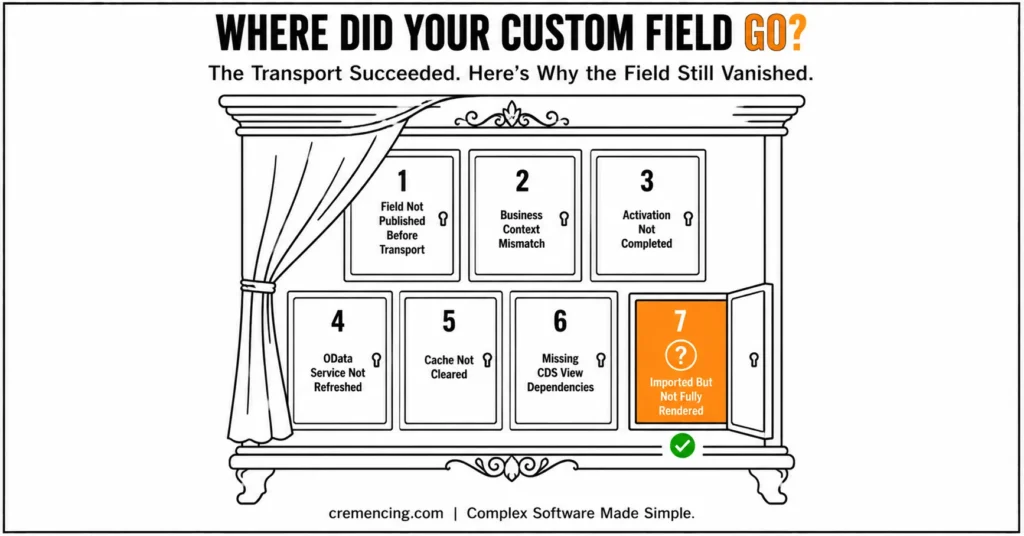
Common causes include:
- Field not published before transport
- The other target system has a business context mismatch
- Activation not completed after import
- OData service not refreshed
- Cache not cleared
- Missing dependencies in CDS views
- Transport imported but not fully rendered
Even if the transport succeeds, gaps such as these can cause fields to fail to appear.
Fixing SAP Custom Fields and Logic Transport Issues: Step-by-Step
Fix 1 (SAP Custom Fields and Logic): Target System Field Status Check
- Open the Custom Fields app
- Check if the field is not available but existing (disabled)
- Activate and publish
2 – Re-publish the Field
- In the target system, republish (click on publish again)
- Ensure no errors occur
3 – Clear Fiori Cache
Run:
- /UI2/INVALIDATE_CLIENT_CACHES
- /IWFND/CACHE_CLEANUP
Step 4 – Verify OData Service
Go to /IWFND/MAINT_SERVICE
Check service activation
Re-register if needed
Step 5 – Validate CDS View Extension
Confirm the extension is active
Review it for syntax or activation errors
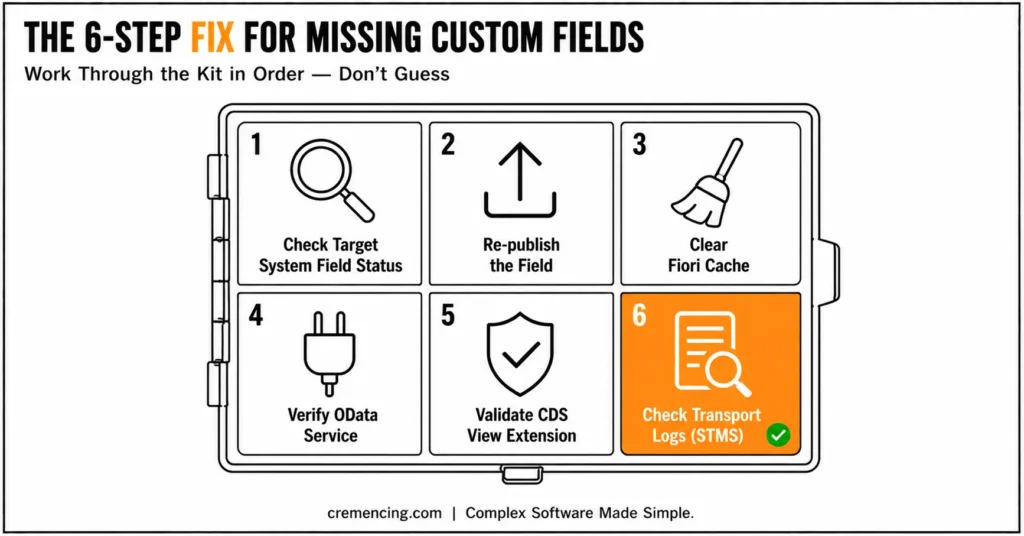
Step 6 —Check Transport Logs
- Use STMS
- Look for any warnings, skipped objects
ROI of Fixing SAP Custom Fields and Logic Transport Problems
Quickly resolving SAP custom field and logic transport issues has tangible value:
- 30–40% faster testing cycles
- Reduced rework during deployments
- Improved system reliability
- Faster user acceptance testing
- Lower dependency on technical teams
Transport errors, even if small in nature, can cause extreme delays in enterprise SAP landscapes. When detected early, fixing them improves the overall efficiency of the project.
Best Practices for SAP Custom Fields and Logic Transport
Common Mistakes
- Not publishing fields before transport
- Ignoring activation in the target system
- Skipping cache clearing
- Assuming transport equals activation
- Not validating business context
Best Practices
- Always publish fields before transport
- QA validation immediately post-import
- Maintain consistent business contexts
- Document dependencies
- Use structured transport management
What Guides Miss About SAP Custom Fields and Logic Transport
Much documentation usually goes to just these basic steps of uploading files and launching the systems.
Key overlooked areas:
- Transport does not guarantee activation
- OData and cache affect UI visibility
- CDS extensions may fail silently
- Cross-system inconsistencies can break fields
- Field enablement varies by application
Recognizing these nuances helps avoid repeating the same issues.
Conclusion
Your SAP custom fields and logic transport may potentially lead to missing fields, but it’s rarely the fault of the transport itself. This is a result of either missing activation, backend inconsistencies, or system dependencies.
A clean transport log was never proof that a custom field is live — it only proves the definition made it to the target system. Everything that actually determines whether that field shows up — activation, business context matching, OData refresh, cache state — happens in a layer the transport log doesn’t report on at all.
That’s the core distinction this guide has walked through: troubleshooting a missing custom field means checking activation and runtime state, not re-running the transport and hoping it behaves differently the second time.
Teams that build a verification step into their standard post-transport checklist stop treating this as a recurring mystery and start treating it as a predictable, five-minute check.
Reach out to our SAP experts who will carry out a diagnosis to quickly resolve issues associated with transport.
FAQ Section
No SAP custom fields in tables after transport (New)
This normally occurs due to missing activation, unpublished fields, or cache issues.
Does transport trigger custom fields by default?
No, activation is usually a manual process that has to take place in the target system.
How do I know my transport was successful?
Utilize STMS logs and check object import status.
Do CDS view problems impact custom fields as well?
There can be 2. Oversight CDS extension does not work if they are inactive or an inconsistent IVB combo. Persistence of records report will only show the fields that were successfully extended on that particular field to make sure cross topic communication.
What causes SAP custom fields to disappear even after a successful transport?
Generally, this happens because the transport process itself only moves the object definitions, not necessarily their activation state. Consequently, a field can transport cleanly yet still remain inactive or unpublished in the target system. As a result, the field simply won’t render in the UI, reports, or API, even though the transport log shows no errors.
Is it necessary to clear the Fiori cache after every custom field transport?
Not always, however, it’s strongly recommended whenever a field appears missing despite being active. Otherwise, the frontend may continue displaying stale metadata even after the backend has been updated correctly. Therefore, running the cache invalidation reports is a quick, low-risk step that resolves a surprising number of visibility issues.
Can a CDS view extension fail without throwing a visible error?
Yes, indeed — this is one of the more frustrating aspects of custom field transports. Sometimes, the extension imports successfully but fails to activate due to a missing dependency or business context mismatch. Consequently, the field can exist in the system while remaining completely invisible, since the CDS layer never fully picks it up.
Why does the OData service need to be re-registered after a transport?
Typically, OData services cache their metadata separately from the underlying business objects they expose. Hence, even when a custom field is correctly activated, the service may still serve outdated metadata until it’s refreshed or re-registered. Otherwise, front-end consumers, including Fiori apps, will continue to show the field as unavailable.
How can teams avoid repeating the same custom field transport issues?
Above all, documenting field dependencies and business contexts before every transport significantly reduces repeat issues. In addition, establishing a standard QA checklist that includes activation, cache clearing, and OData verification helps catch problems early. Consequently, teams that follow a structured, repeatable process spend far less time troubleshooting the same root causes.
Should custom fields always be tested in QA before moving to production?
Absolutely — skipping QA validation is one of the fastest ways to carry hidden activation issues into production. Furthermore, QA environments often reveal business context mismatches or missing dependencies that aren’t obvious during development. Therefore, validating fields immediately after import, rather than assuming success from the transport log alone, is considered a non-negotiable best practice.