

Introduction
SAP Business Application Studio can make SAP development more efficient, but the wrong setup can have the opposite effect. Developers can lose time to unnecessary tooling, poorly chosen dev spaces, repeated project configuration, Git issues, or connectivity problems. The result is often a workflow that feels slower and more complicated than expected.
These problems may not always appear as explicit errors, but they still consume developer time. A team that repeatedly waits for environments, fixes the same configuration issues, or manually repeats setup tasks loses time that could otherwise go toward coding, testing, and debugging.
Over time, those small delays can accumulate across a sprint or project. That is why BAS productivity should be treated as a workflow and configuration issue, not simply as a question of whether the development platform is fast or slow.
How Misconfiguring Workspaces in SAP Business Application Studio
In SAP Business Application Studio (BAS), using the generic /projects directory as a single workspace root degraded IDE response times and caused configuration conflicts. Because BAS generates isolated virtual environments (Dev Spaces) with defined memory quotas and a 6GB storage ceiling, opening multiple unrelated multi-target applications under one root forces background processes such as TypeScript language servers, CAP tools, and Git indexers to parse unnecessary files.
This practice exhausts dev space resource limits, slows down run-configuration initialization, and degrades live preview performance. To maintain optimal execution speed and prevent dev space performance degradation, developers should isolate individual projects into focused single-root or dedicated multi-root workspaces rather than relying on a global project directory.
Choosing the Wrong Dev Space
One of the first decisions that affects productivity in SAP Business Application Studio is the dev space you create for a project. BAS provides different development environments for different scenarios, so the right choice depends on what you are actually building.
A common mistake is choosing a dev space based on familiarity rather than project requirements. Developers may enable tooling they never use or select an environment that does not match the application’s development scenario.
Before creating a dev space, identify the project’s requirements first. Then select the environment and tooling that support those requirements. This keeps the workspace focused and reduces unnecessary configuration.
What to check
- What type of SAP application are you developing?
- Which frameworks and tools does the project actually require?
- Are unnecessary extensions being loaded?
- Does the whole team use a consistent dev-space setup?
- Does the dev space match the project’s current development needs?
SAP documents different development scenarios and tooling for Business Application Studio, so dev-space selection should be based on the workload rather than simply copying another developer’s setup.
Unnecessary Extensions and Tools
1.Installing Tools You Do Not Actually Need
More tooling does not automatically mean more productivity. A development environment should contain the tools required for the project, not every available extension.
For example, if a project only requires a specific SAP development workflow, adding unrelated tooling can make the workspace harder to maintain. It can also make troubleshooting more difficult because developers have more configuration to consider when something behaves unexpectedly.
Before adding an extension, ask a simple question: Does this project require it?
If the answer is no, leave it out. For team environments, document the extensions that are required so every developer starts from a consistent baseline. The goal is not to use fewer tools at all costs. The goal is to use the right tools for the development scenario.
2. Repeating the Same Project Setup Manually
Another productivity problem appears when developers repeatedly perform the same setup steps for every project.
Manually configuring dependencies, project settings, Git repositories, and development tools may seem manageable for one application. However, repeated manual configuration increases the chance of inconsistent environments and small setup mistakes.
Instead, standardize the repeatable parts of the workflow. Define how projects should be initialized, which dependencies are required, how repositories are connected, and which configuration should be shared across the team.
The objective is simple: a new developer should not have to rediscover the same setup process that another developer already completed. A documented setup process also makes onboarding easier and gives the team a consistent baseline for troubleshooting.
| BAS productivity mistake | What developers notice | What to check | Practical fix |
|---|---|---|---|
| Wrong dev space | Missing or unnecessary tooling | Project requirements | Select the appropriate dev space |
| Too many extensions | Cluttered environment | Installed tooling | Remove unnecessary extensions |
| Manual setup | Repeated configuration work | Project initialization | Standardize setup |
| Git issues | Authentication/repository delays | Git configuration | Establish a consistent workflow |
| Late connectivity testing | Service requests fail later | Destinations and access | Test dependencies early |
| Unstructured troubleshooting | Same problem keeps returning | Affected environment layer | Use a repeatable troubleshooting process |
SAP Business Application Studio
SAP Business Application Studio is a cloud-based development environment for developing SAP applications with a focus on SAP Fiori apps.
It provides:
- Pre-configured development environments
- Integration with SAP systems
- Tools to support SAPUI5 and Fiori
- Git integration for version control
It provides flexibility and scalability, unlike traditional tools. Like anything else, though, they only help if set up and used correctly. Without the proper setup and usage, its benefits can become bottlenecks in no time.
It helps to realise how the platform works — and then you can carry on being productive.
5 Mistakes You Make with SAP Business Application Studio
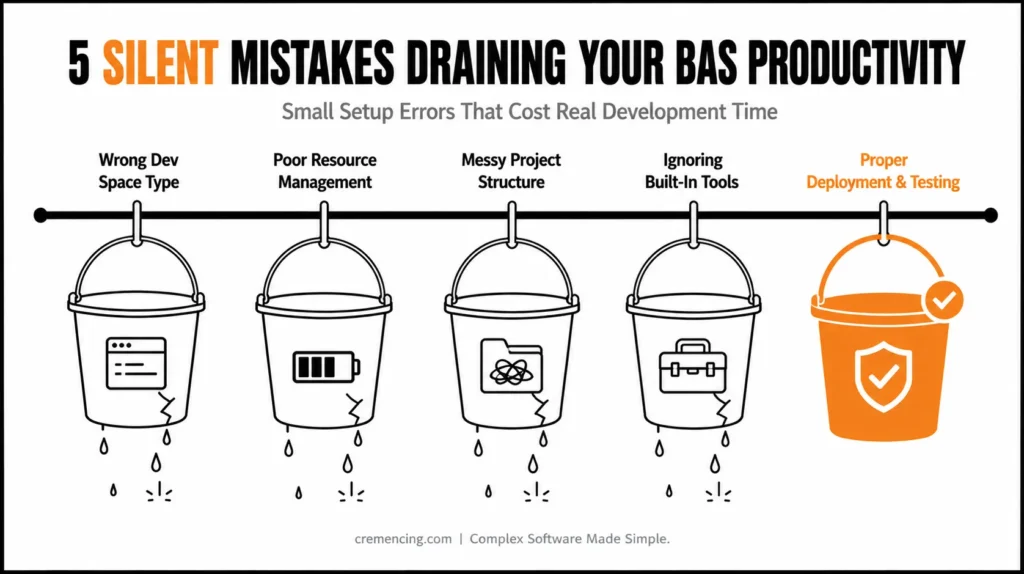
Mistake 1—Selecting the Wrong Type of Dev Space
Problem:
Most developers choose a dev space without knowing the actual reason.
- Implementing simple UI works in a full-stack dev space
- Selecting a mini arrangement without mandatory tools
This results in either the use of missing extensions or unnecessary complexity.
Fix:
- Development with Fiori dev space for SAPUI5
- Full-stack dev space → Strike only whenever have to develop the backend.
- Install required extensions upfront
Selecting the proper dev space boosts efficiency and diminishes mistakes.
Mistake 2: Underutilizing Dev Space Resource Management
Problem:
Note: Running multiple dev spaces concurrently can be resource-intensive.
- Slower performance
- Delayed builds
- Increased loading time
Fix:
- Stop unused dev spaces
- Allocate resources properly
- Monitor performance regularly
Managing resources improves responsiveness significantly.
Mistake 3 — Project Structure and Organization
Problem:
Unstructured projects make development difficult.
- Hard to navigate files
- Difficult debugging
- Increased maintenance effort
Fix:
- Follow standard SAP project structure
- Use clear naming conventions
- Organize components logically
A clean architecture minimizes development time and increases maintainability.
Mistake 4 – Lack of Efficient Use of Built-in Tools
Problem:
It is common for developers to overlook robust, built-in functionality.
- Not using Fiori tools
- Manual configuration instead of automation
- Ignoring templates
Fix:
- Integration with SAP Fiori tools for app generation
- Leverage templates for faster setup
- Use debugging and preview tools
Development can be done much faster using the built-in tools.
Mistake 5 — Poor Deployment and Testing Methodologies
Problem:
Improper deployment leads to issues:
- Apps not visible in Launchpad
- Missing configurations
- Inconsistent behavior
Fix:
- Test apps locally before deployment
- Validate configuration settings
- Make sure Role and Catalog assignments
Effective deployment practices lead to not having problems after releasing it.
Advantages & ROI from Deprecated SAP Business Application Studio Errors
Designed these specific SAP Business Application Studio blunders to offer tangible positive effects:
- 30–50% faster development cycles
- Reduced debugging time
- Improved application performance
- Better team collaboration
- Lower project delays
Influential Saying: Teams that perfect their workflow can boost productivity and efficiency.
Common Mistakes and Best Practices
Common Mistakes
- Using incorrect dev space type
- Running too many dev spaces
- Poor file organization
- Ignoring built-in tools
- Weak testing practices
Best Practices
- And choose the right dev space for your use case
- Manage resources efficiently
- Follow structured project design
- Use automation tools
- Test thoroughly before deployment
These practices help facilitate smooth and efficient development.
Why Is Developer Productivity Slower Even Without Errors?
Blogs mostly highlight visible errors, but productivity can plummet without any noise.
Hidden issues include:
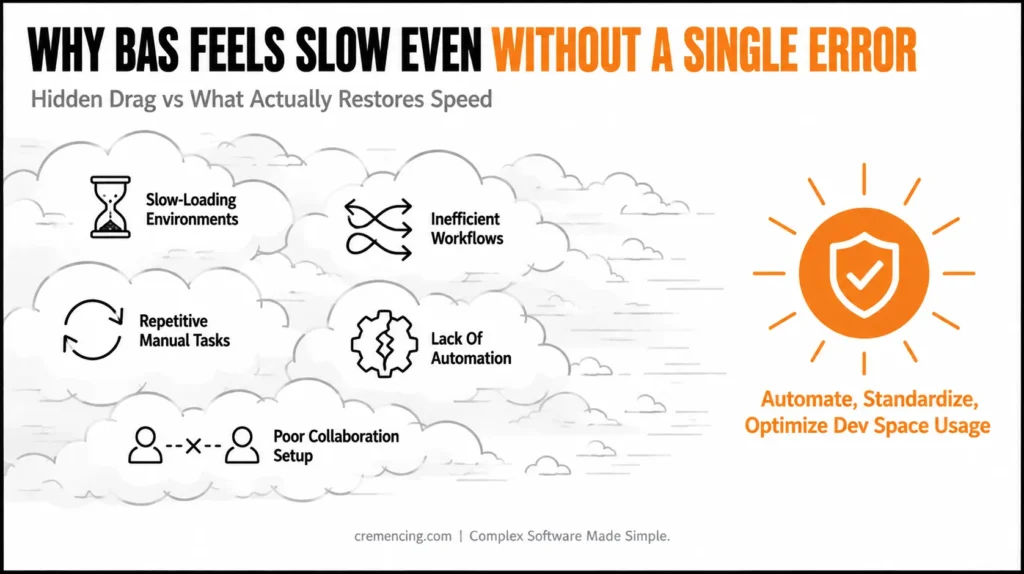
- Slow-loading environments
- Inefficient workflows
- Repetitive manual tasks
- Lack of automation
- Poor collaboration setup
Such reflects the inefficiencies inherent in systems, without crashing it entirely.
What Actually Works
- Automate repetitive tasks
- Use templates and tools
- Optimize dev space usage
- Standardize workflows
These hidden factors are why you can’t keep up your productivity for the long term.
Conclusion
SAP Business Application Studio can support an efficient SAP development workflow, but productivity depends heavily on how the environment is configured and used. The biggest gains do not necessarily come from adding more tools. They come from removing unnecessary setup, choosing the right dev space, keeping extensions relevant, standardizing project and Git configuration, testing connectivity early, and troubleshooting problems at the correct layer.
For development teams, the best approach is to turn these checks into a standard setup process. When every developer starts from a consistent environment and follows the same workflow, small configuration problems are less likely to become repeated project delays.
Common mistakes such as utilizing the wrong dev space, not having an ideal structure for your project, and inefficient workflows can be identified & rectified to boost performance.
Having an optimized manner of utilizing SAP Business Application Studio results in rapid development, better output, and efficient project delivery.
FAQ Section
1. What is SAP Business Application Studio used for?
SAP Business Application Studio is a cloud-based development environment for building and extending SAP applications. It provides development tools for scenarios such as SAP Fiori, SAPUI5, CAP, and other SAP technologies.
2. Why is SAP Business Application Studio slow?
Slow performance can have different causes, including dev-space configuration, project dependencies, extensions, network connectivity, or application-related issues. Identify which part of the workflow is slow before changing the environment.
3. How can I improve productivity in SAP Business Application Studio?
Choose the appropriate dev space, remove unnecessary extensions, standardize project setup, configure Git properly, test connectivity early, and use a consistent troubleshooting process.
4. What is a dev space in SAP Business Application Studio?
A dev space is an isolated development environment in BAS that provides the tools and resources needed for a specific development scenario. Choosing the appropriate dev-space type helps avoid unnecessary configuration.
5. Can unnecessary extensions affect SAP Business Application Studio productivity?
Yes. Installing tools that a project does not require can make the environment harder to manage and troubleshoot. Use only the extensions and tools needed for the project’s development scenario.
6. How do I troubleshoot SAP Business Application Studio problems?
First identify the affected layer: dev space, extension, project configuration, dependency, Git, connectivity, or application runtime. Then test one potential cause at a time instead of changing multiple settings simultaneously.